![5e7383edff0f8e6e3c4967b0_sw-logo-black-1.png]](https://help.syncwords.com/hs-fs/hubfs/5e7383edff0f8e6e3c4967b0_sw-logo-black-1.png?height=40&name=5e7383edff0f8e6e3c4967b0_sw-logo-black-1.png)
To add a new user to the account, click the Home button near the top left of the page to be taken to the Admin screen.
NOTE: Only an account Owner or Admin can add new users or change an existing user's role.
Adding a New User to an Account
To expand your team and collaborate effectively, you can invite new users to your account.
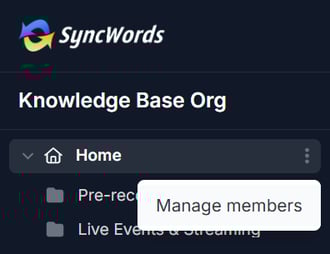
- From the Admin screen, hover over the three dots located on the right of your account name
- Click on "Manage members"
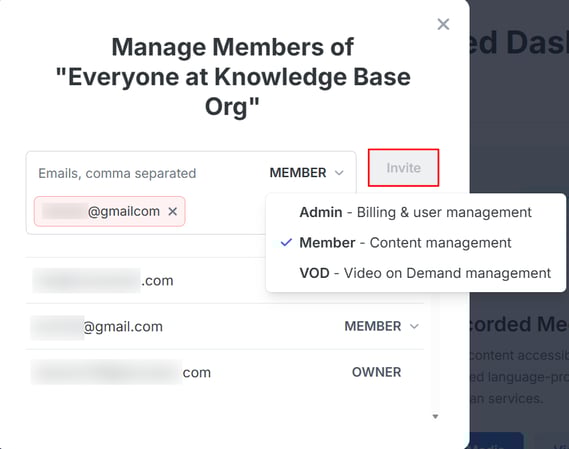
- Enter the email addresses of the individuals you wish to invite
- Select the role for each user from the dropdown:
- Admin - For users who need to manage billing and user permissions
- Member - For users who primarily create projects and events
- VOD - Video on Demand management
- Click "Invite" to send the invitations
The invited users will receive an email invitation to join your account with the assigned role.
Changing User Access Levels
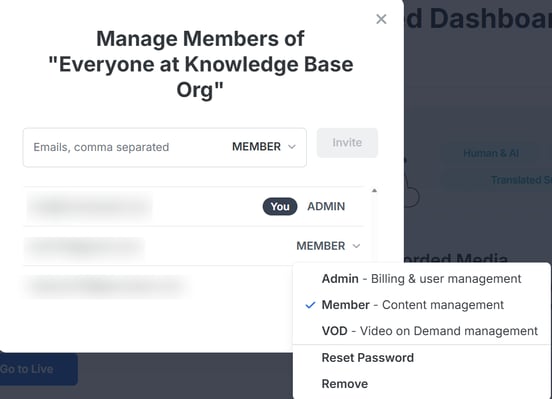
After a user has been added to your account, an Admin or Owner can change their access level at any time.
The user's access level will be updated immediately, and they will have the permissions associated with their new role.
You can also resend the invitation and remove users by clicking the dropdown with the user role.
NOTE:
-
Only Owners and Admins can change user access levels. Members cannot modify other users' permissions. The Owner role cannot be reassigned through this method.
-
The VOD role only applies for organizations that have access to both SyncWords Live and VOD services.
Remove Users from Organization
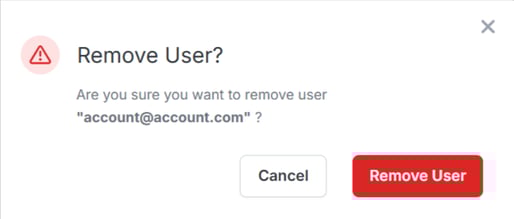
When a user no longer needs access to your teamspace, an Owner or Admin can remove them.
Once you click "Remove" you need to approve the removal by clicking "Remove User".