![5e7383edff0f8e6e3c4967b0_sw-logo-black-1.png]](https://help.syncwords.com/hs-fs/hubfs/5e7383edff0f8e6e3c4967b0_sw-logo-black-1.png?height=40&name=5e7383edff0f8e6e3c4967b0_sw-logo-black-1.png)
The Postprocessing Dictionaries section allows you to create and manage lists of words to match and replace in the source language transcription output. This enables automatic text corrections and standardization after transcription is complete.
IMPORTANT: You can create a Postprocessing dictionary only at the account level - Organization Settings
When you add a Postprocessing dictionary at the account level - Organization Settings, you will be able to apply it to any of your Live ASR events or Services , and/or set it to automatically apply to all your events or Services by default.
NOTE: Only an account Owner or Admin can access the Organization Settings page.
From the Unified dashboard page, click on Live Events & Streaming option to access the SyncWords Live page.
Click the gear icon in the top navigation to access the Organization Settings page.

You are now on your Organization Settings page. Click the Postprocessing dictionaries tab and click the "Create a List" button to add a new Postprocessing dictionary.
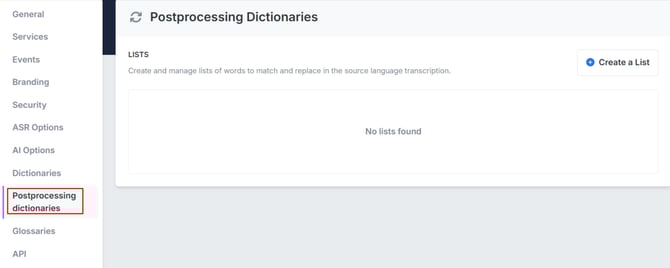
In the Create List modal, configure the following fields and select "Create" to save it.
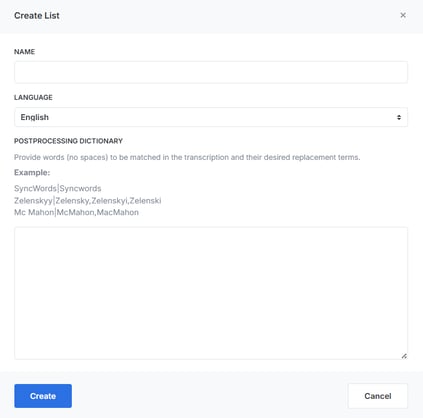
Name: Enter a descriptive name for your postprocessing dictionary. This name will be used to identify the dictionary when selecting it in Service configuration.
Language: Select the language for this postprocessing dictionary from the dropdown menu. The dictionary will only be applied to transcriptions in the selected language.
NOTE: If your source language is Multilingual, you can also set the language to 'Multilingual' from the dropdown.
Postprocessing Dictionary: Enter the words or phrases to be matched in the transcription and their desired replacement terms. Use the pipe character (|) to separate the match term from the replacement term(s). Each match-replacement pair should be on a new line.
Once created, you can select this dictionary in Step 3: Transcription when creating or editing a Service. The dictionary will automatically apply your replacements to transcribed text.
IMPORTANT: Provide words with no spaces to be matched in the transcription and their desired replacement terms.
For more information on creating and using postprocessing dictionaries, see Can I replace words in the ASR output?