![5e7383edff0f8e6e3c4967b0_sw-logo-black-1.png]](https://help.syncwords.com/hs-fs/hubfs/5e7383edff0f8e6e3c4967b0_sw-logo-black-1.png?height=40&name=5e7383edff0f8e6e3c4967b0_sw-logo-black-1.png)
A schedule starts and stops your Service automatically at the times you set, once or on a repeating pattern. Without a schedule, you have to manually start and stop the Service yourself.
Applies to: Services
On this page: Add a schedule · Set when it runs · Repeat a schedule · Start early and stop late · Scheduling rules
Before you begin
- A Service, or a Service you're creating in the Create Service Wizard.
- The time zone you want to work in, selected at the top right of the page. See Can I change the time zone I see in SyncWords Live?
Add a schedule
You can add a schedule while you create a Service, or at any time afterwards.
While creating a Service
- Complete the wizard up to Outputs.
- In the Schedule step, click Add schedule.
- Fill in the schedule (see the sections below) and click Add schedule.
- Add more schedules if you need them, then click Continue to go to Preview and finish creating your Service.
To skip scheduling, click Continue without adding one. You can add schedules later.
For an existing Service
- Go to the Service's Schedule page, either:
- From the Services list: click Manage schedule under the Service's Start button.
- From inside the Service: click Schedule in its side menu.
- Click Add schedule.
- Fill in the schedule and click Create schedule.
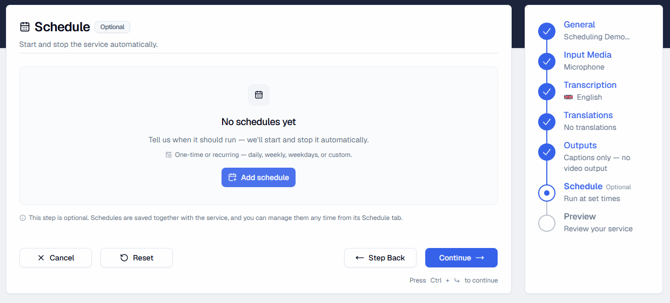
NOTE: A Service can have several schedules, such as a daily show and a one-off special. Their runs can't overlap.
Set when it runs
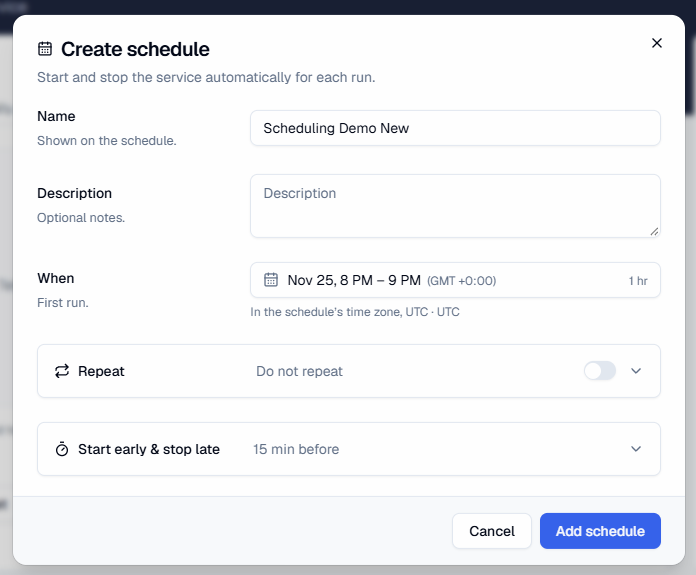
- Name: shown on the schedule, so pick one you'll recognize later.
- Description: optional notes, shown with the schedule's details.
- When: click the date to set the first run. Choose the Start date and time and the End date and time, or drag the Duration slider. You can also change the time zone at the bottom of the picker. Click Done.
The line under When shows the schedule's own time zone, for example In the schedule's time zone, America/New_York. Runs keep to that time zone even when you view the page in another one.
Repeat a schedule
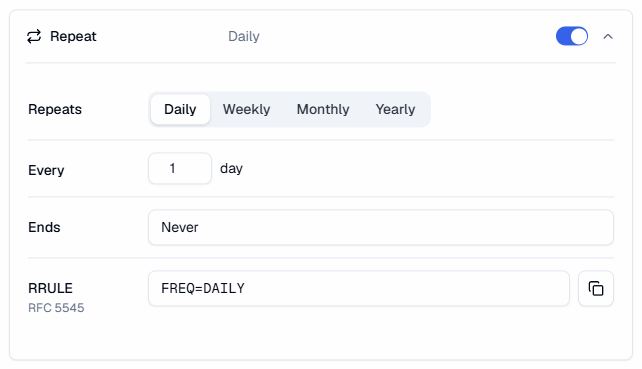
By default a schedule runs once (Do not repeat). To repeat it, turn on Repeat and set:
- Repeats: Daily, Weekly, Monthly or Yearly. With Weekly, pick the days it runs, for example weekdays only.
- Every: how often, for example every 1 day or every 2 weeks.
- Ends: Never, After a number of runs, or On a date you pick.
The summary next to Repeat shows the result, such as Daily, until Dec 1, and the next few runs. The RRULE field shows the same pattern as a standard calendar rule (RFC 5545), which you can copy for use in other tools.
Start early and stop late
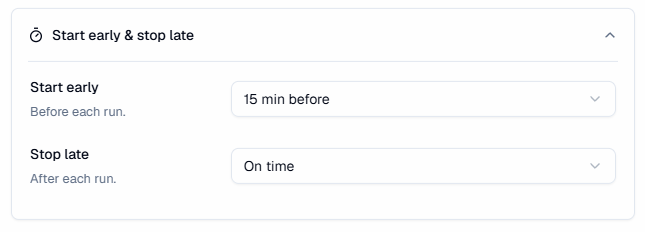
Open Start early & stop late to give each run some margin:
- Start early: start the Service before each run, from On time up to 120 minutes before.
- Stop late: keep it running after each run ends, from On time up to 120 minutes after.
New schedules use your organization's defaults, set by Auto Start Events and Auto Stop Events in Settings › Events. You can change both for each schedule.
For example, a run from 5:00 to 5:05 PM with Start early set to 5 min before starts the Service at 4:55 PM. On the Timeline, these margins show as lighter ends on each run.
TIP: Start a few minutes early so the Service has time to start up and your stream can connect before the session begins, and stop late if your sessions tend to run over.
Scheduling rules
- A schedule must last at least 5 minutes.
- You can't schedule a run in the past.
- Runs can't overlap with another schedule or run on the same Service, including their start-early and stop-late margins. If they do, you'll see Time overlap detected with an existing schedule or occurrence and the schedule isn't saved.
- While a schedule is set, the Service shows Scheduled in the Services list, with the time it will start.
What's next: see [Manage a Service's schedule and runs] to change, skip or extend runs and check their history.