![5e7383edff0f8e6e3c4967b0_sw-logo-black-1.png]](https://help.syncwords.com/hs-fs/hubfs/5e7383edff0f8e6e3c4967b0_sw-logo-black-1.png?height=40&name=5e7383edff0f8e6e3c4967b0_sw-logo-black-1.png)
Overview
You can use SyncWords to provide AI or Human captions for you next MS Teams meeting:
- AI captions - More accurate automatic speech recognition than Teams' built-in captions
- Human captions - Professional CART captioners
This article shows you how to connect SyncWords to your Microsoft Teams meeting so captions appear in real-time for all participants.
Before You Begin
Requirements:
- Microsoft Teams Enterprise account (third-party captions require an Enterprise account)
- MS Teams Meeting or Webinar
- A SyncWords Live event (create one before following these steps, or contact SyncWords Managed Services)
- Meeting organizer access in MS Teams
Need help? Contact your SyncWords representative or visit our Contact page to schedule your event.
Step 1: Generate the CART link in Microsoft Teams
The meeting organizer must generate a CART caption link from Microsoft Teams. This link allows SyncWords to send captions to your meeting.
- Create or open your Teams meeting invitation
- Select Meeting options
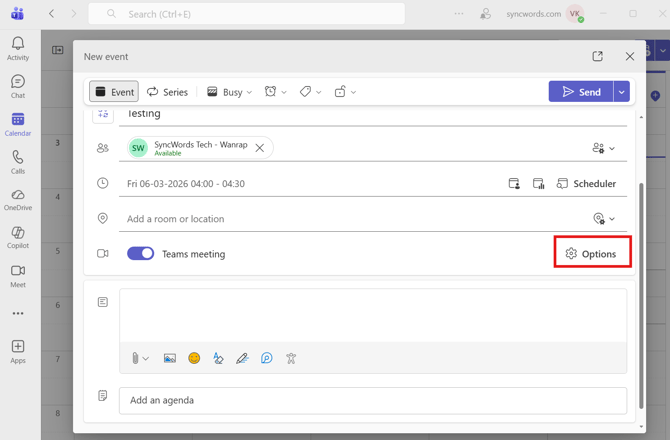
- On the Meeting options page, turn on the Provide CART Captions toggle
- Select Apply
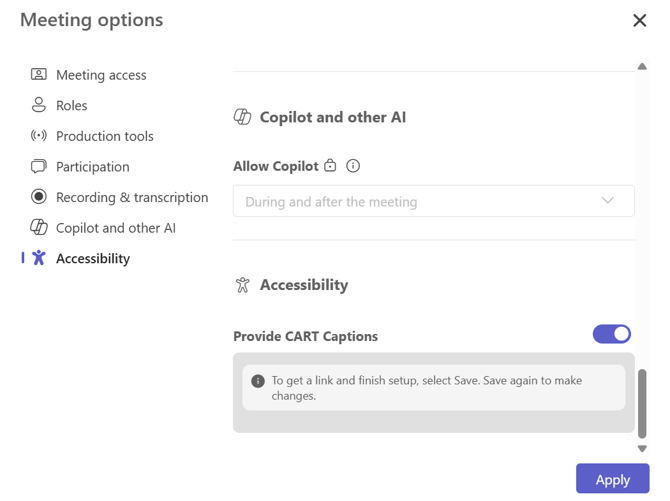
- Under Provide CART Captions, select Copy link to copy the caption link to your clipboard
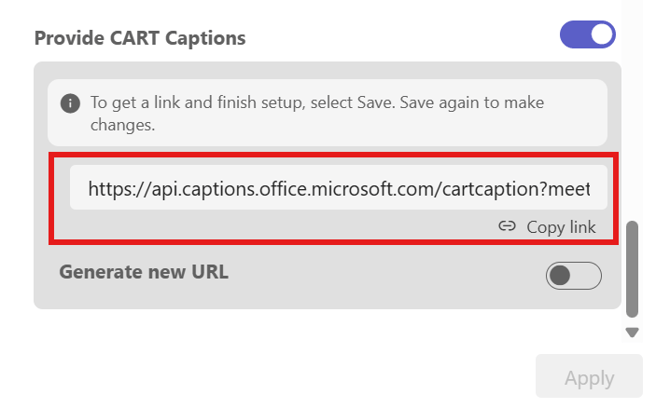
IMPORTANT: The Generate new URL option creates a new CART caption link and invalidates the existing one. If you've already shared the link with SyncWords, do not generate a new URL unless you plan to update it in your SyncWords event.
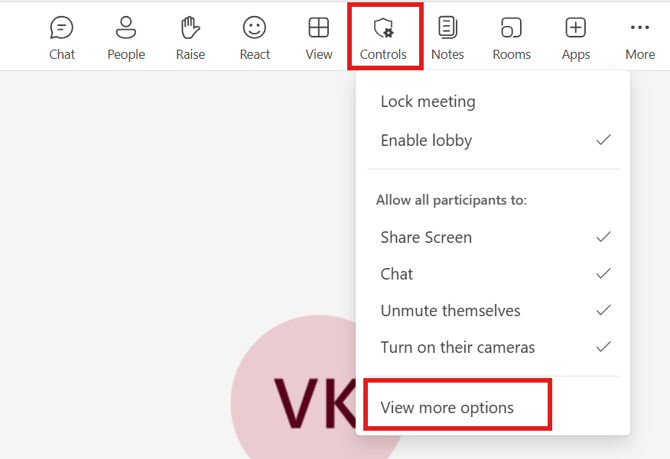
TIP: You can also retrieve the CART link after the meeting has started. In the meeting window, select More options (...) from the meeting controls, then follow steps 3-5 above.
Step 2: Add the CART link to your SyncWords event
Once you have the CART link from Teams, add it to your SyncWords event:
- In your SyncWords Live event, locate the Microsoft Teams integration section
- Paste the CART link into the API Key field
- If your event includes translation, select the target language from the Language dropdown
- Toggle the Enable Microsoft Teams Captions to on
- Select Save Microsoft Teams to activate the integration
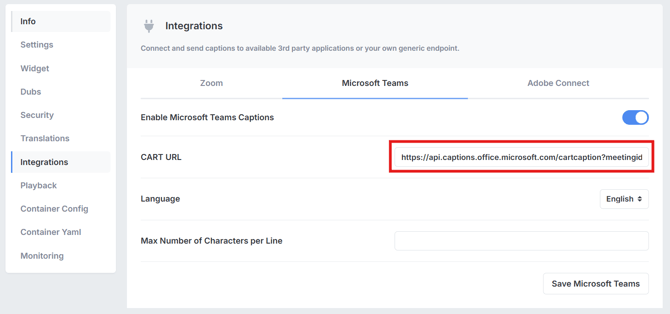
NOTE: If you add the CART link after your SyncWords event has already started, you'll need to stop and restart the event from the SyncWords dashboard for the integration to take effect.
Working with SyncWords Managed Services? Simply send the CART link to your SyncWords Live Event Manager via email or Teams chat - they'll configure it for you.
Step 3: Enable captions during your meeting
Once the integration is configured and your SyncWords event is running, captions will be available to all meeting participants.
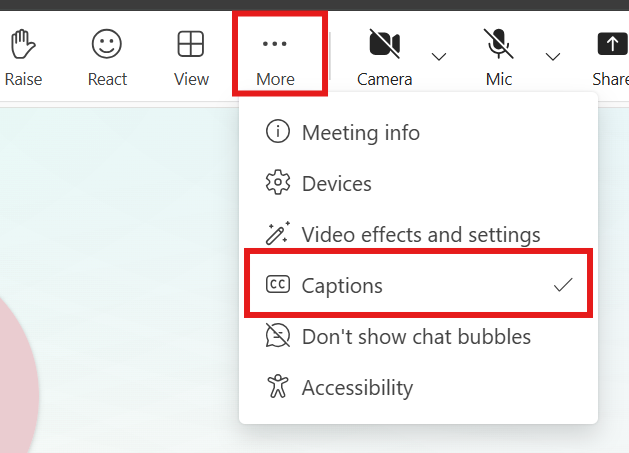
To turn captions on or off:
- In your Teams meeting, select More (...) from the meeting controls
- Select Captions
CART captions are displayed by default once the integration is active and will appear at the bottom of the meeting window for all participants who have enabled them.
Troubleshooting
Captions aren't appearing:
- Verify the CART link is correctly pasted in your SyncWords event
- Ensure your SyncWords event is running
- Check that captions are enabled in your Teams meeting controls
- Confirm you're using a Microsoft Teams Enterprise account
I accidentally regenerated the CART URL:
- Copy the new CART link from Teams
- Paste it into your SyncWords event's API Key field
- Save the changes
- Restart your SyncWords event
Captions stopped working during the meeting:
- Contact your SyncWords Live Event Manager immediately for assistance
Need help? Contact SyncWords Support or your Live Event Manager.