![5e7383edff0f8e6e3c4967b0_sw-logo-black-1.png]](https://help.syncwords.com/hs-fs/hubfs/5e7383edff0f8e6e3c4967b0_sw-logo-black-1.png?height=40&name=5e7383edff0f8e6e3c4967b0_sw-logo-black-1.png)
The Custom Label feature allows you to define personalized language names for your HLS output streams. This is useful when you want to display specific labels (e.g., "Español (LATAM)" instead of just "Spanish") to your viewers in the HLS player.
NOTE: Custom labels will be applied to both text and audio tracks
IMPORTANT: Custom labels are only applied to HLS outputs.
Step 1: Enable Custom Language Tags
Before you can customize output labels, you need to enable the Custom option in the General settings of your Service.
- Navigate to Step 1: General settings of the Create Service Wizard
- Expand the Advanced Settings section by clicking the dropdown
- Locate the Language Tags option
- Select Custom from the available options:
- English - Uses English names for all languages (e.g., "Spanish", "French")
- Native - Uses native names for languages (e.g., "Español", "Français")
- Custom - Allows you to define your own custom labels for each language
- Click Continue to save and proceed to the next step
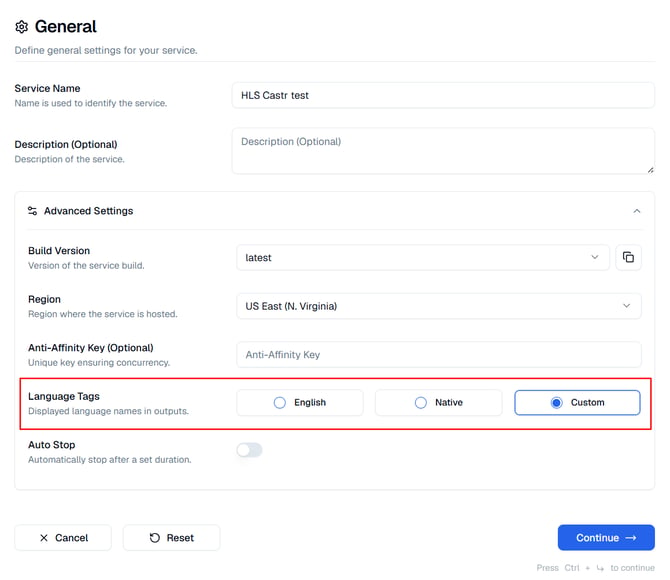
IMPORTANT: Selecting Custom enables the Output label field in subsequent steps. Without this selection, custom labels will not be available.
Step 2: Add a Custom Label to Transcription
Once Custom is selected in General settings, you can add a custom label to your transcription output.
- Navigate to Step 3: Transcription in the wizard
- Configure your transcription settings (Source Language, Language Variant, Speech Engine, etc.)
- Locate the Output label field
- Enter your custom label for the transcription language
- Click Continue to save and proceed to the next step
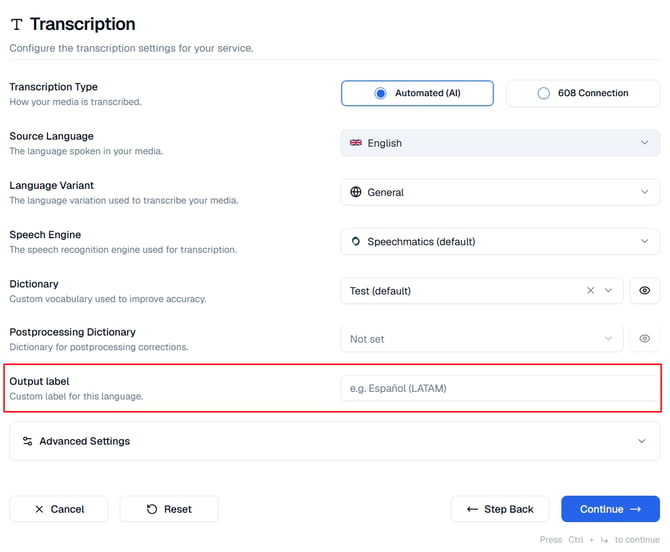
NOTE: If you leave the Output label field blank, it will default to the English catalog name.
Step 3: Add Custom Labels to Translations
You can also customize labels for each translation language added to your Service.
- Navigate to Step 4: Translation in the wizard
- Click Add Translation to add a translation language (or edit an existing one)
- Click the Subtitle Settings option to access the Translation Settings modal.
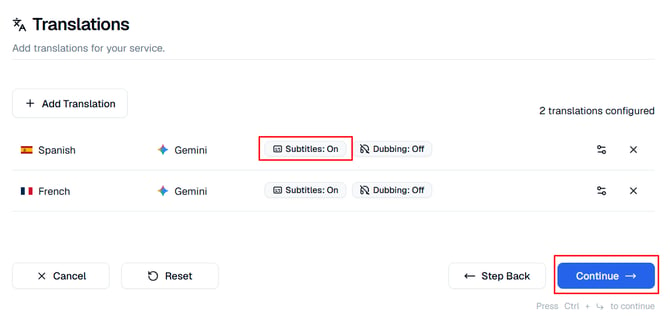
- In the Translation Settings modal, configure your Subtitles settings
- Locate the Output label field and enter your custom label for this translation language
- Click Update Translation to save your custom label
- Repeat for each translation language you want to customize
- After saving all your translation customizations, click Continue at the bottom of the Step 4: Translation section to save and proceed to the next step.
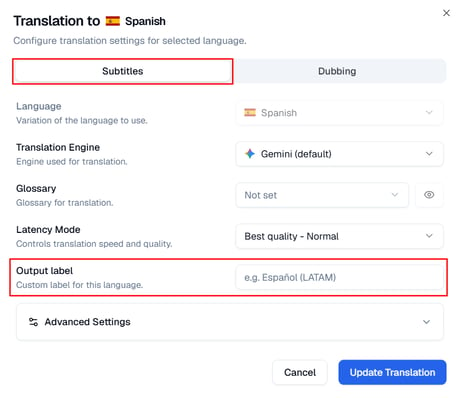
NOTE: If you leave the Output label field blank, it will default to the English catalog name.
Once configured, your custom labels will be embedded in the HLS manifest and displayed by HLS-compatible players in the subtitle selection menus.