![5e7383edff0f8e6e3c4967b0_sw-logo-black-1.png]](https://help.syncwords.com/hs-fs/hubfs/5e7383edff0f8e6e3c4967b0_sw-logo-black-1.png?height=40&name=5e7383edff0f8e6e3c4967b0_sw-logo-black-1.png)
Sending to multiple outputs allows you to push the same encoded stream to up to 4 different RTMP destinations simultaneously. Each destination can have its own dubbing language, allowing you to deliver different audio translations to different platforms.
IMPORTANT: Sending to multiple destinations is only available for RTMP output. This feature is not currently supported for HLS, SRT, CMAF, or 608 outputs.
Important Notes
Before configuring your destinations, keep these key points in mind:
Audio Tracks (Dubs):
-
You can send either the same language audio track or a different language audio track (dub) to different destinations
-
Each destination can only receive one language audio track. You cannot send multiple dubs to a single destination
Output Settings:
-
The settings in the output section of your Service (Buffer, Caption & Subtitles, and Advanced Settings) apply to all destinations. They cannot be customized per destination. For example, if you have set a 30 second buffer it will apply to your stream to both YouTube and Facebook. You cannot set the buffer to 10 seconds for YouTube and 20 seconds for Facebook. The same applies to the Captions. All captions selected are going to all destinations.
Step 1: Configure Your Service
Set up your SyncWords Service with the standard wizard steps:
-
Step 1: General Settings - Configure your service name and basic settings
-
Step 2: Input Media - Select RTMP as your input source
-
Step 3: Transcription - Configure your transcription settings
-
Step 4: Translation - Add any translation languages and enable dubbing as needed
Step 2: Set Up Multiple RTMP Destinations
Navigate to Step 5: Output in the wizard to configure your destinations.
-
Stream Type: Select RTMP
-
Delivery Method: PUSH will be automatically selected
-
You will see the message: "Each destination pushes the same encoded stream — connector type, stream URL, and stream key. Up to 4 destinations."
-png.png?width=670&height=527&name=image%20(75)-png.png)
-
Click Add destination to add your first destination
- A modal will pop up where you can configure the destination. Additional configuration options are available in the Configure Destination section.
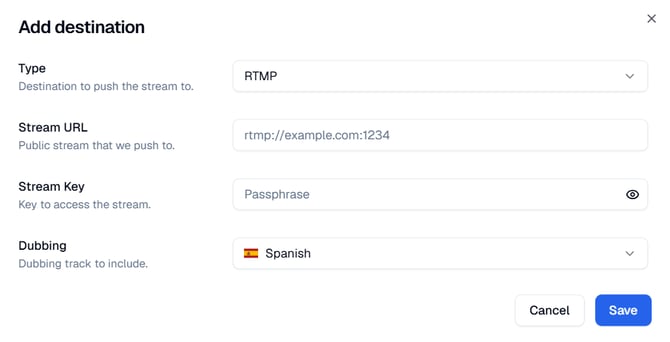
- Repeat the above steps to add up to 4 total destinations.
-png.png?width=670&height=684&name=image%20(72)-png.png)
Configure Destination
For each destination, configure the following:
Destination Type: Select the destination platform from the dropdown:
-
RTMP - Standard RTMP output for generic RTMP servers or CDNs
-
RTMP for YouTube - Optimized output for YouTube Live
-
RTMP for Facebook - Optimized output for Facebook Live
-
RTMP for Vimeo - Optimized output for Vimeo Live
Stream URL: Enter the destination platform's RTMP URL
Stream Key: Enter the Key to access the stream
Dubbing: Select which dubbing language to send to this destination. Each RTMP destination can carry a different dub.
NOTE: If dubbing is not selected for a destination, the source audio will be sent to the destination.
Step 3: Configure Buffer and Other Settings
After adding your destinations, configure the remaining output settings:
Buffer: Set the buffer time in seconds.
Captions & Subtitles: Configure your CC channel mapping (e.g., CC1 for English, CC2 for French, CC3 for Spanish).
Please see Step 5: Output (RTMP) - How do I configure RTMP Output for my Service using the new UI? for more information
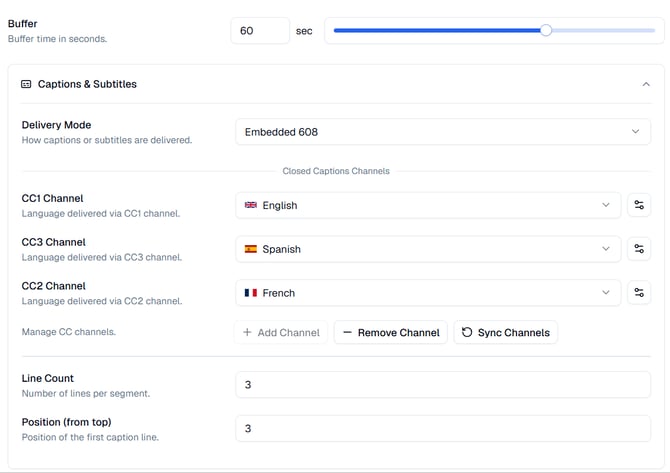
NOTE: Some platforms only support specific CC channels. Verify your destination platform's CC channel support before configuration.
IMPORTANT: The settings in the output section of your Service (Buffer, Caption & Subtitles, and Advanced Settings) apply to all destinations