![5e7383edff0f8e6e3c4967b0_sw-logo-black-1.png]](https://help.syncwords.com/hs-fs/hubfs/5e7383edff0f8e6e3c4967b0_sw-logo-black-1.png?height=40&name=5e7383edff0f8e6e3c4967b0_sw-logo-black-1.png)
Prerequisites
Before you begin, you'll need:
-
Your Service ID (found in your Service settings)
-
Your API keys (public key and private key)
-
Access to the SyncWords Live API Documentation 2 (Organization settings)
IMPORTANT: Only account Owners and Admins can access and adjust the Organization Settings pages
Step 1: Set up your SyncWords Service
Create or configure your SyncWords Service.
Please see Step 1: General Settings - How do I create a Service using the new UI? for more information.
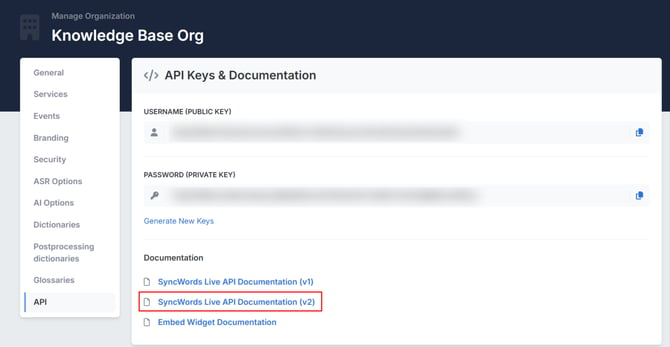
Step 2: Open SyncWords Live API Documentation (v2).

NOTE: Only account Owners and Admins have access to the API page.
Step 3: Authenticate with the API
If your session expires or you receive a 401 error, simply re-authenticate before continuing.
Authentication Steps
-
On the SyncWords API page, click on Auth (Manage Authentication) to create a token.

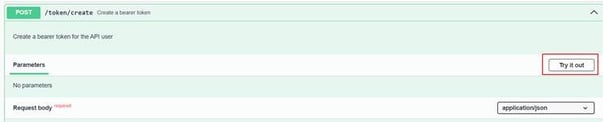
- Click on POST: Token Create to expand (Create a bearer token)

- For the Request Body to be editable, click Try it out
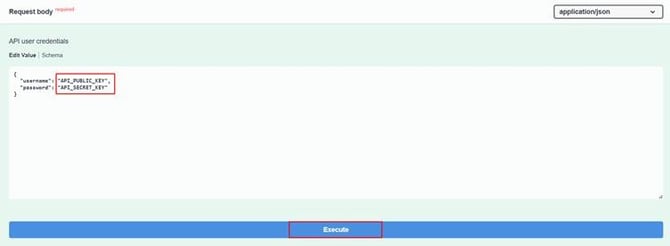
- Enter your credentials:
Username = API_PUBLIC_KEY, Password = API_SECRET_KEY
Use these credentials under the API section (Organization settings)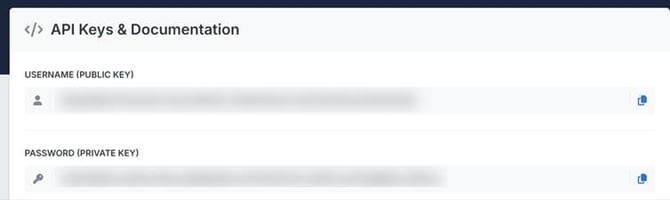
- Paste them in this section, and click Execute
- Confirm you see: "You have been successfully authenticated." with a 200 server response code
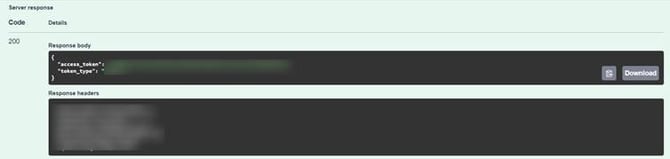
NOTE: If you receive a "401 - Error: Unauthorized" server response at any point during the process, return to this step and re-authenticate before retrying.
IMPORTANT: If you close or navigate away from the API page, you might need to authenticate again
Step 4: Configure Widget Output Settings to enable the Required Output URLs
Once authenticated, you can configure your caption pages and widgets.
- On the SyncWords API page, click on Widget Output Settings.

- Click on Patch – Update Widget Outputs Settings

- For the Request Body to be editable, click Try it out
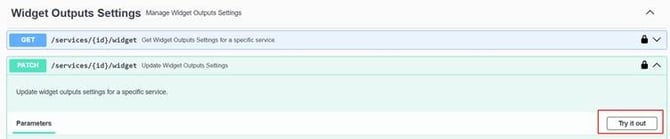
- Enter your SyncWords Service ID

- Here are all the values you can configure. Make sure you are on Edit Value.
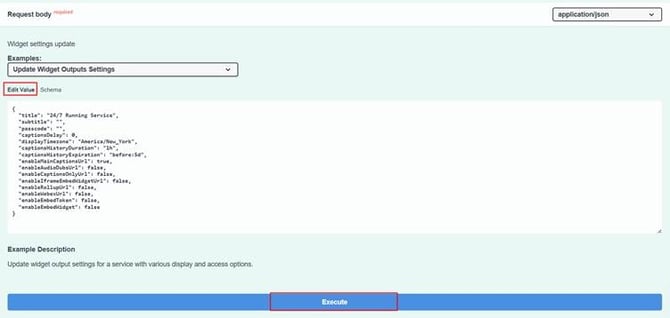
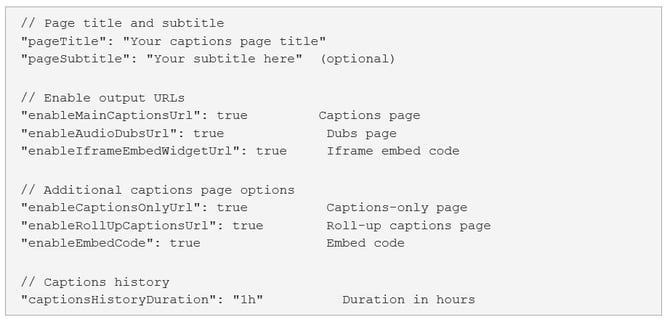
- Configure the below values as required.
- Once you have updated your settings, click Execute.
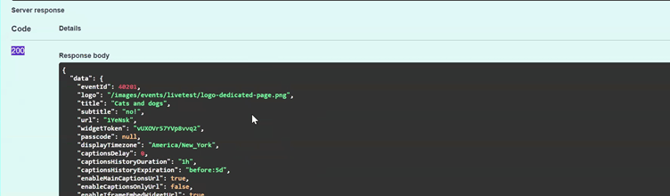
- Under Server response, confirm that the status code is 200.
IMPORTANT: Only enable the Dubs page for Services that have dubbing configured. Enabling the Dubs page via the API when no dubs are enabled on the Service can cause the Service to stop working correctly. Verify that at least one translation language has dubbing enabled in Step 4: Translation before enabling this output.
Step 5: Retrieve the Output URLs
After successfully executing, the response will include your enabled URLs in the enabled_urls section.
- In the Server Response section, find the enabledUrls or enabledEmbeds fields. The URLs will appear in the following format:

- Copy the relevant URL(s) for the Captions page, the Dubs page, or the iframe embed as required.

NOTE: If using an iframe embed script, remove any unnecessary backslashes from the script before use. The raw response may include escape characters that are not needed in the final embed code.
IMPORTANT:
- Only enabled pages will have active URLs
- Disabled pages will return a 404 error
Step 6: Retrieve URLs/iFrame for the Captions/Dubs Pages
Once the pages/widgets you require from your Service are enabled they remain available until disabled. You can retrieve them at any time.
Retrieval Steps
- On the SyncWords API page, click on Widget Output Settings - Manage Widget Outputs Settings
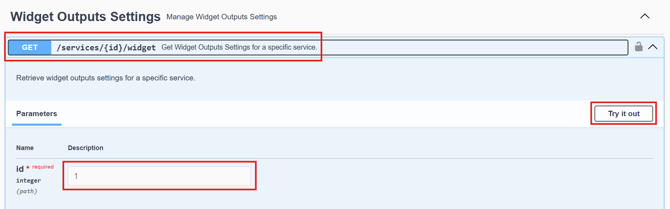
- Expand the GET /services/{id}/widget endpoint (Get Widget Outputs Settings for a specific service)
- Click Try it out
- Enter your Service ID in the id field
- Click Execute
- In the Server Response body, you should see the URLs and iframes that have already been configured for that Service

TIP: This is useful when you need to retrieve URLs for sharing with stakeholders or embedding in different locations without having to reconfigure your widget settings.
Step 7: Apply a Widget Theme (Optional)
If you want to customize an iframe, you can do that by choosing it - with Widget theme from the dropdown.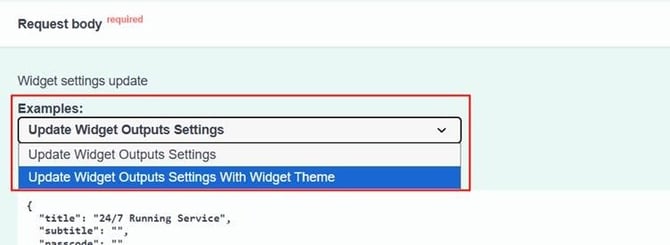
Apply the theme to your Service
-
In the Widget settings update section, select the Update Widget Outputs Settings With Widget Theme.
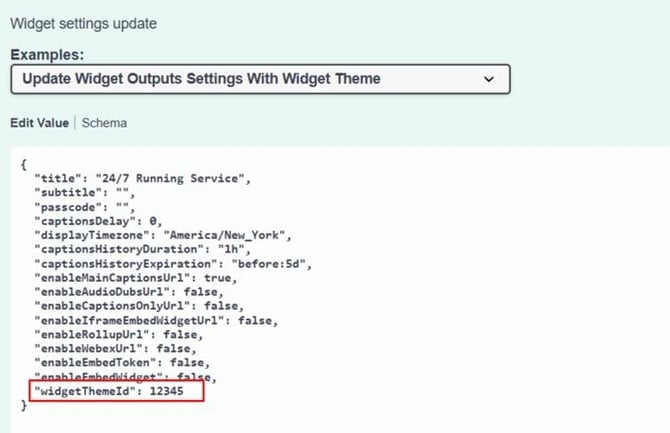
- Update the widgetTheme Id field with your theme number.
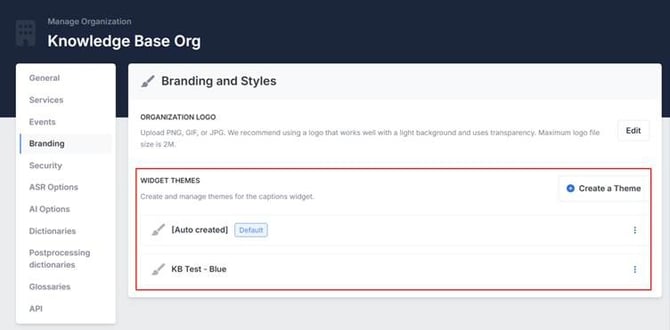
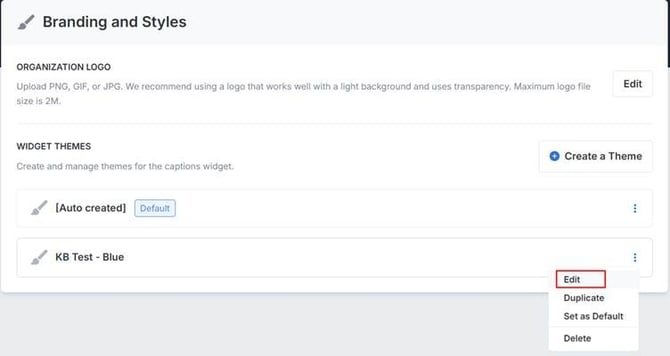
For example: "widgetThemeId": 42 - If you have already created the widget Theme, you can get the widget Theme Id from your Organization settings.
- Click on the 3 dots and then click edit on the Widget theme created.
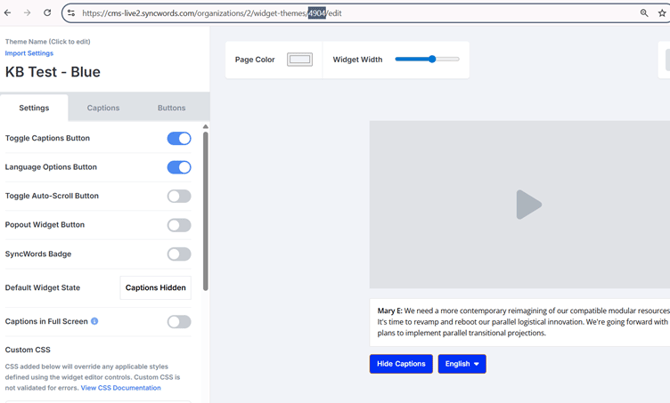
- This will take you to the page where you can copy the Widget theme ID
- Click Execute and confirm a 200 server response code.
NOTE: If you don't specify a theme, the default theme set up in your account will apply.
Step 8: Retrieve a QR Code for the Captions Page (Optional)
To generate a QR code for your caption page:
On the SyncWords API page, click on QR Codes - Manage QR Codes for services, expand the GET endpoint.
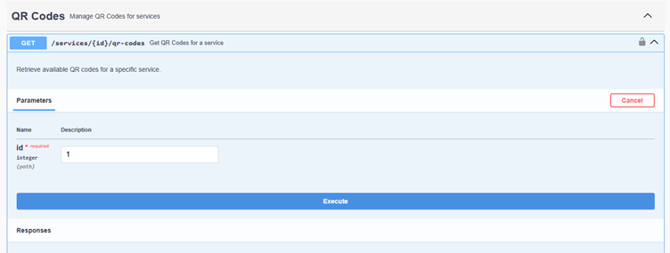
Retrieve the QR code:
- Click Try it out.
- Paste your Service ID into the id field.
- Click Execute.
- From the server response, copy the URL for the PNG or SVG file as required.
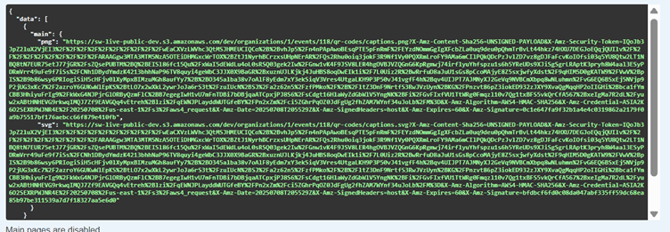
- Paste the URL into a browser to view and download the QR code.
NOTE: A QR code is only available via the API for the Captions URL. If you require a QR code for the Dubs URL, or a combined QR code containing both URLs, you will need to use a 3rd party QR code generator.
Step 9: Upload a Logo to a Service (Optional)
You can add a custom logo to your caption pages using two methods:
Method 1: Default Logo (Automatic)
Set a default logo in your Organization settings. This logo will automatically apply to all services in your account.
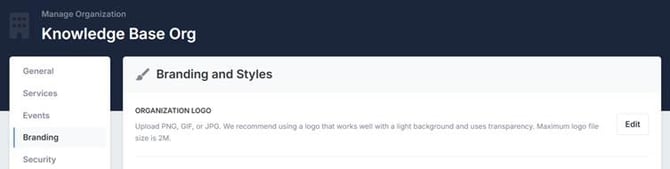
Method 2: Service-Specific Logo (API)
Upload a logo for a specific Service using the API.
-
On the SyncWords API page, click on Service Logo - Manage Service logos, expand the POST endpoint.
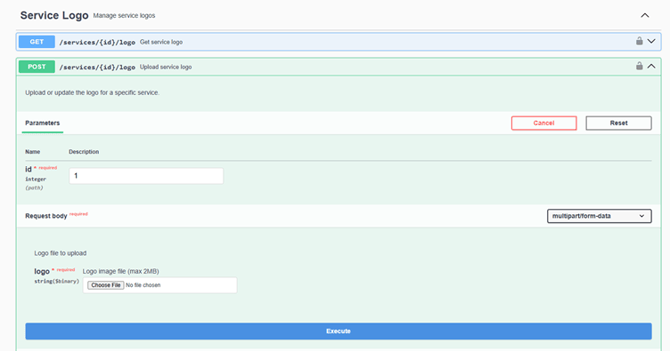
- Upload the logo:
- Click Try it out.
- Paste your Service ID into the id field.
- Upload your logo image to the Logo file to upload field.
- Click Execute and confirm a successful response.
Important Reminders
Critical: Settings Reset on Page Refresh
- When you refresh the API page or navigate away and return, all field values reset to empty.
This means:
-
You must re-enter ALL settings you want to keep, not just the ones you're changing
-
Executing with empty fields will reset those values to default
-
Always include the complete configuration when making updates
Additional Features
Caption History Duration: Controls how long captions remain visible on the page.
Example: Set to 1 hour
Behavior:
- Users who open the page at the start see all captions (unless they refresh)
- If a user refreshes 2.5 hours into a 3-hour event, they'll only see the last 1 hour of captions
- Older captions automatically disappear from view
Caption Delay: Useful when embedding captions in a stream that has latency.