![5e7383edff0f8e6e3c4967b0_sw-logo-black-1.png]](https://help.syncwords.com/hs-fs/hubfs/5e7383edff0f8e6e3c4967b0_sw-logo-black-1.png?height=40&name=5e7383edff0f8e6e3c4967b0_sw-logo-black-1.png)
Every scheduled Service has a Schedule page where you can see what's coming up, move or skip a single run, extend a run while it's live, and edit or delete whole schedules.
Applies to: Services
On this page: See what's coming up · The Schedule page · Change a single run · Edit or delete a schedule · While a run is live · Run history
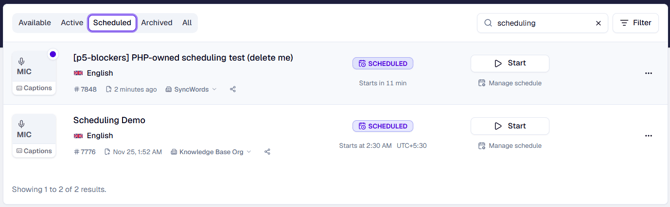
See what's coming up- Services list: a scheduled Service shows Scheduled and the time it starts. Hover over it to see the next run: date, start and end, start-early margin and time zone. Use the Scheduled tab to list only scheduled Services.
- Service Overview: the Schedule card shows the next run and how many schedules the Service has.
- Manage schedule: click it under the Service's Start button in the Services list to go straight to the Schedule page.
The Schedule page
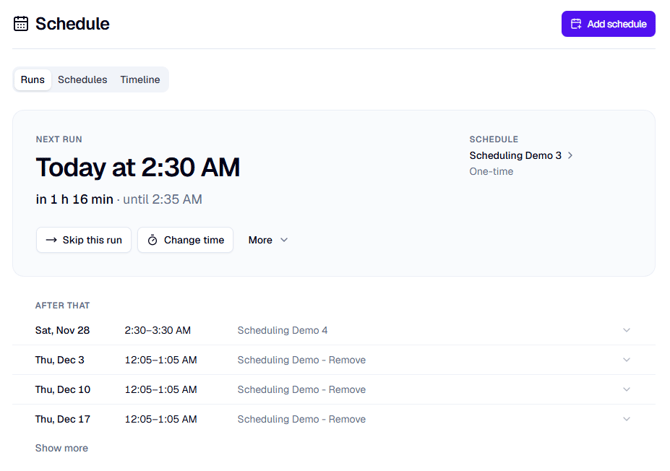
Open the Service and click Schedule in the side menu. The page has three tabs:
- Runs: the next run, with when the Service starts and stops, then the runs After that.
- Schedules: each schedule with its pattern and next run. Expand one to see its upcoming runs. The icons on the right let you view its runs (as a List or Calendar), edit it or delete it.
- Timeline: a week view of all runs. Lighter ends on a run show its start-early and stop-late margins. Select a run to see or change it.
All times are shown in the time zone selected at the top right of the page. To change it, see Can I change the time zone I see in SyncWords Live?
Change a single run
These options affect one run only. The schedule and its other runs stay as they are.
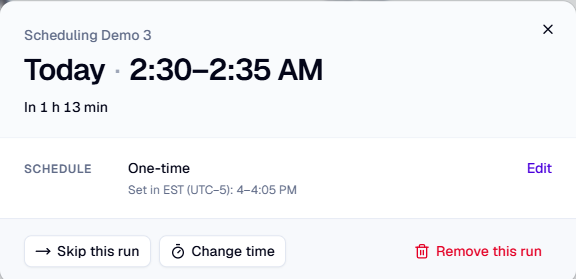
- Change time: pick a new start and end for this run and click Change time. The run is marked Time changed.
- Back to scheduled time: under More, or in the run's details, undo a time change.
- Skip this run: the run stays on the schedule, but the Service won't start for it. To reinstate it, Unskip the run. If you unskip it during its scheduled time, the Service starts right away.
- Remove this run: under More, remove this run from the schedule completely. Use Skip this run instead if you might want it back.
- View details: under More, see the run's schedule, any change to its time, and these options in one place.
NOTE: You can't move a run into the past, shorten it below 5 minutes, or make it overlap another run.
Edit or delete a schedule
To change every run of a schedule, edit the schedule itself:
- On the Runs tab, click More › Edit schedule, or on the Schedules tab, click the edit icon next to the schedule.
- Change the name, description, time, Repeat or Start early & stop late settings. For what each setting does, see Schedule a Service to start and stop automatically.
- Click Save changes.
To stop repeating, turn off Repeat and save: only the first run stays.
To delete a schedule and all its runs, click the delete icon next to it on the Schedules tab, then confirm.
WARNING: If one of the schedule's runs is live, deleting the schedule stops the Service and ends all its outputs.
While a run is live
When a run starts, the Service shows Initializing and then Live, with the time it will stop. The Runs tab shows Running until that time.
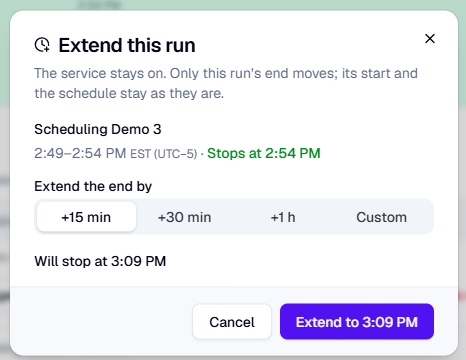
Extend a run:
- Click Extend on the Runs tab or the Overview.
- Choose +15 min, +30 min, +1 h or Custom.
- Click Extend to the new end time.
Only this run's end moves; its start and the schedule stay as they are.
Edit the schedule while it's live: click More › Edit schedule. Every change applies to the live run too, except that you can't move its start earlier than the current time.
Stop a run early: click Stop Service. The run is marked Stopped, and the schedule won't restart it. The next scheduled run still starts as planned.
WARNING: Stopping the Service ends captions and output for everyone watching. Extend the run instead if the session is only running over.
Run history
On the Runs tab, open History to see the scheduled runs from the last 30 days and whether each one ran. History lists scheduled runs only, including ones stopped early. Runs you start by hand aren't included. History is read-only.