![5e7383edff0f8e6e3c4967b0_sw-logo-black-1.png]](https://help.syncwords.com/hs-fs/hubfs/5e7383edff0f8e6e3c4967b0_sw-logo-black-1.png?height=40&name=5e7383edff0f8e6e3c4967b0_sw-logo-black-1.png)
Step 1 - Create a Service
In SyncWords, create a new service or navigate to your existing service configuration.
Please see Step 1: General Settings - How do I create a Service using the new UI? for more information.
Step 2 - Provide Input Media
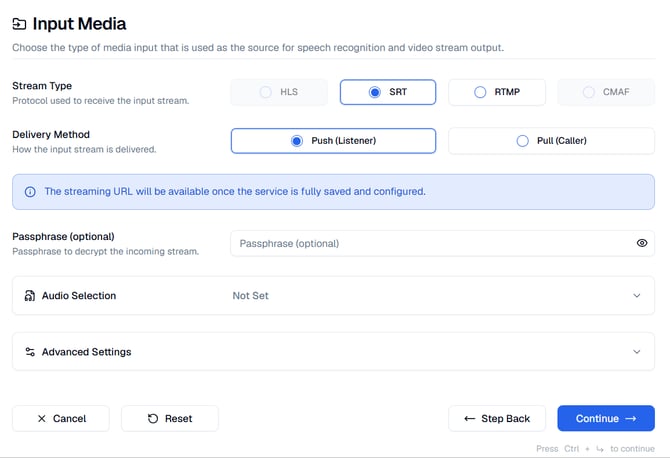
During the Step 2: Input Media, you can select the type of stream that is used as the source for speech recognition and the video stream output.
From the Input Media section, select SRT. Then select the "Push (listener)" option.
After selecting SRT Push (listener), the system will generate an SRT URL and stream key. Use these credentials to send your live stream to the platform.
Please see Step 2: Input Media (SRT) - How do I use SRT as an Input source for my Service using the new UI? for more information.
IMPORTANT:
Castr recommends the following settings for encoders
- Encoder: x264
- Rate control: CBR or Constant Bitrate
- Keyframe Interval: 2
- Bitrates and Resolution:
- For 720p:
30fps with average bitrate of 2500 to 4000 kbits/sec
60fps with average bitrate of 3500 to 5000 kbits/sec - For 1080p:
30fps with average bitrate of 3500 to 5000 kbits/sec
60fps with average bitrate of 5000 to 6500 kbits/sec
- For 720p:
- Audio Bitrate: 128 kbits/sec
Step 3 - Set up Transcription
Now that we have set up the incoming stream we need to set up the Transcript section to create the captions.
Configure the transcription settings to create captions from your live stream audio.
Please see Step 3: Transcription - How do I enable Transcription for my Service using the new UI? for more information.
Step 4 - Set up Translations (optional)
If you need translations, you can add real-time AI text translations and audio dubbing to your live stream.
Please see Step 4: Translation - How do I enable Translation for my Service using the new UI? for more information.
Read our article on How to Setup Audio Translations for more details.
Step 5 - Set up the Output
The last step is to set up the stream that will go back out to the client with captions and audio translations prior to delivery to its final destination.
In your SyncWords Service configuration, navigate to the Output section and select "SRT PUSH (Caller)" and enter the url provided by Castr.
NOTE: We will go over where to get those values from Castr below in case you are not familiar with their setup.
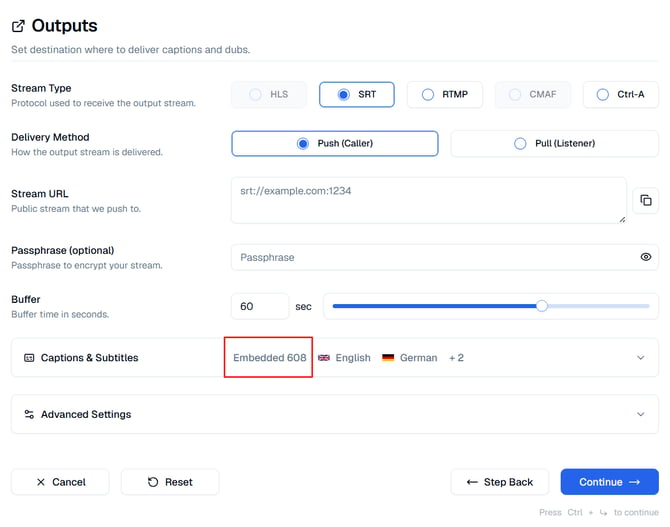
Make sure the "Embedded 608" or "DVB-TXT" is enabled under Captions & Subtitles. Make sure to click "Continue" once your selections are set. This moves to the next step where you can preview your Service settings.
Please see Step 5: Output (SRT) - How do I configure SRT Output for my Service using the new UI? for more information.
Getting the Stream URL from Castr
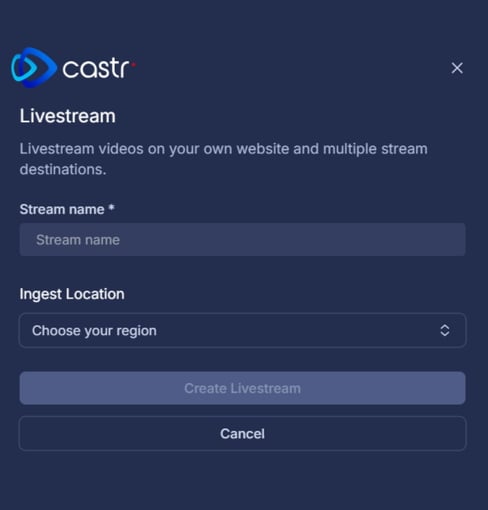
- In Castr, click on Livestreams on the left and then the Create New button

-
Stream name: Give your stream a name
-
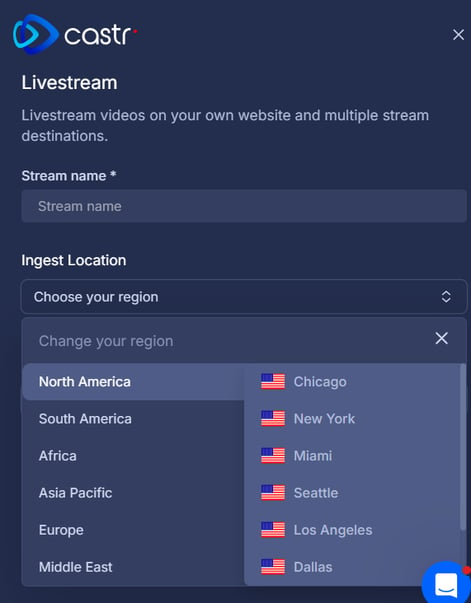
Ingest Location: Select the region closest to your broadcast and then click Create Livestream to create your livestream.
-
Once the Livestream has been created, you can change the assigned region at any time by clicking Source Setup beneath the preview window on the right and selecting the desired region.
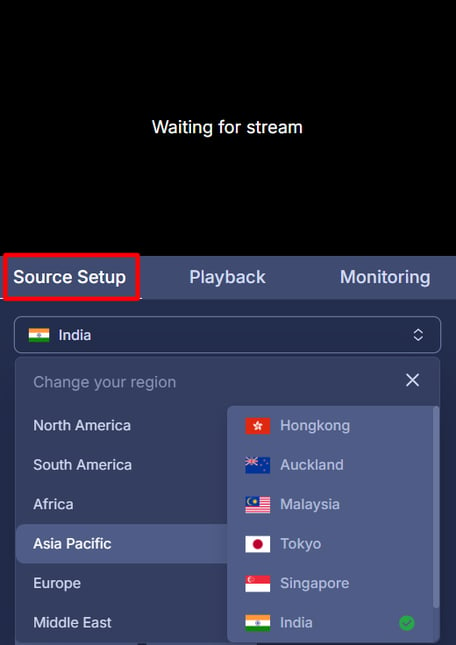
IMPORTANT: Changing the region will alter your RTMP/SRT URL. Please ensure to update the SRT details on SyncWords Live accordingly.
-
In the livestream, go to Settings > Player Functions > Turn on Enable Caption Support.
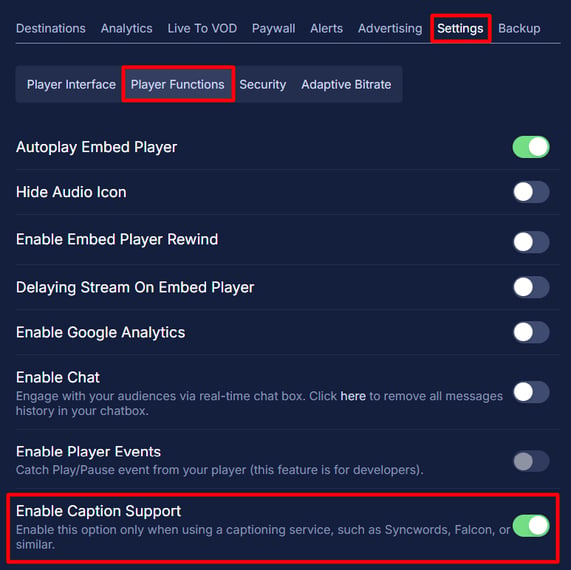
WARNING: If Enable Caption Support is not turned on, the captions will not show up in your stream.
-
From the Source Setup, under Publish > SRT on your Livestream, grab the SRT URL to paste into the corresponding Output fields on SyncWords Live.
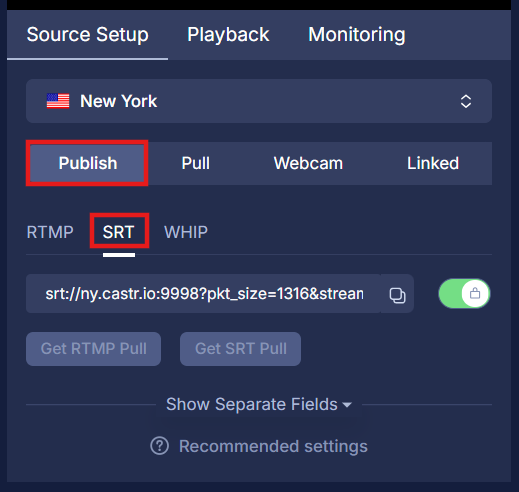
You are set! Once you start streaming to SyncWords Live, the stream with the captions and audio translations will be sent to Castr and you will see that the stream is live in the preview window on the right side of the page.
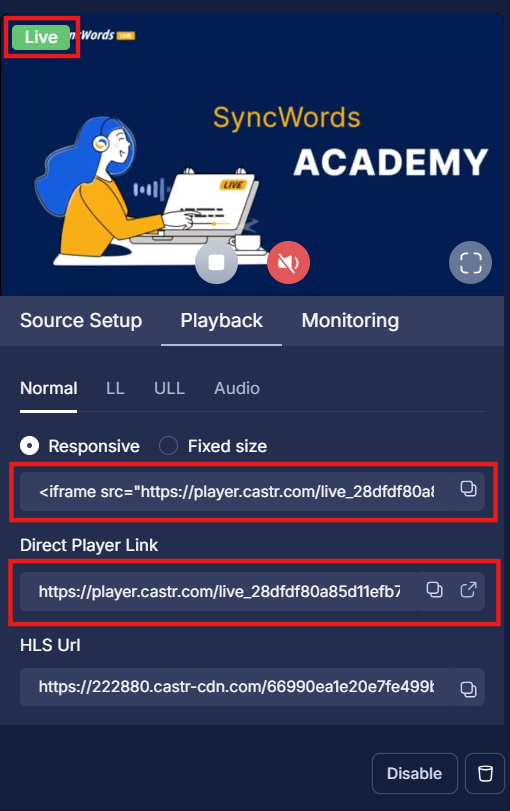
You can view the stream with the captions either by embedding an iframe with the player into your event website using the iframe or directly by opening Castr player on a browser using the Direct Player Link under the Playback tab of your livestream.
Viewers can turn on the captions by clicking on the captions icon on the bottom right of the player and selecting the language they prefer or turn on an audio translation by clicking on the headphones icon on the bottom right of the player and selecting the audio track.
WARNING: You must start your SyncWords Service in order for it to accept incoming streams and deliver an output.