![5e7383edff0f8e6e3c4967b0_sw-logo-black-1.png]](https://help.syncwords.com/hs-fs/hubfs/5e7383edff0f8e6e3c4967b0_sw-logo-black-1.png?height=40&name=5e7383edff0f8e6e3c4967b0_sw-logo-black-1.png)
Step 1 - Create a Service
In SyncWords, create a new service or navigate to your existing service configuration. Please see Step 1: General Settings - How do I create a Service using the new UI? for more information.
Step 2 - Provide Input Media
From the Input Media section, select RTMP PUSH. This determines how your live stream is received by the Service for processing. 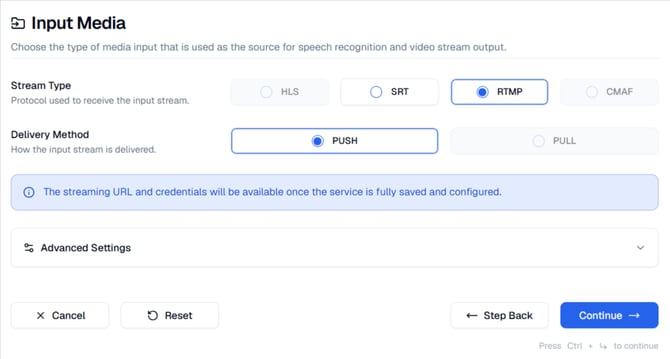
Please see Step 2: Input Media (RTMP) - How do I use RTMP as an Input source for my Service using the new UI? for more information.
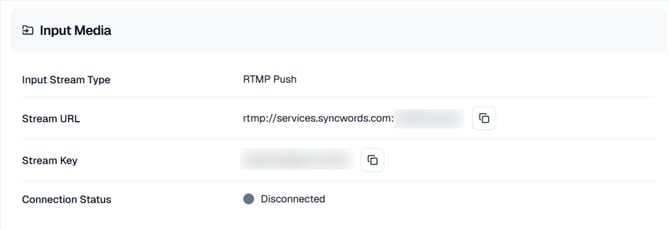
If you already have an existing Service with RTMP selected on the Input, copy the values generated and enter them into your existing live streaming software or service (OBS, Wirecast, Streamyard, etc.) to send your stream to SyncWords.
Restream Common Guidelines
Video Guidelines
Resolution: Up to 3840 × 2160FPS: 30 or 60
Codec: H.264 (x264)
Mode: Strict CBR
Keyframe Interval: 2 Seconds
Max Bitrate: 15,000 Kbps
Min Bitrate: 500 Kbps
Audio Guidelines
Codec: AAC-LC, Stereo or Mono
Max Bitrate: 160 Kbps (AAC)
Sampling Frequency: 44.1 (AAC)
Step 3 - Set up Transcription
Now that we have set up the incoming stream we need to set up the Transcript section to create the captions.
Configure the transcription settings to create captions from your live stream audio.
Please see Step 3: Transcription - How do I enable Transcription for my Service using the new UI? for more information.
Step 4 - Set up Translations (optional)
If you need translations, you can add real-time AI text translations and audio dubbing to your live stream.
Please see Step 4: Translation - How do I enable Translation for my Service using the new UI? for more information.
NOTE: Only one language can be added and it would replace the source language captions.
WARNING: RTMP output only supports languages using Latin character sets, so picking a language like Arabic would not work.
Step 5 - Set up the Output
The last step is to set up the stream that will go out to one or more RTMP endpoints with the embedded 608 captions. In your SyncWords Service configuration, navigate to the Output section select RTMP - PUSH and add at least one destination.
You can now also send multiple RTMP output destinations to stream simultaneously to platforms like YouTube, Facebook, Castr and more. Please see Can I send my RTMP output to multiple destinations? for more information.
NOTE: We will go over where to get those values from Restream below in case you are not familiar with their setup.
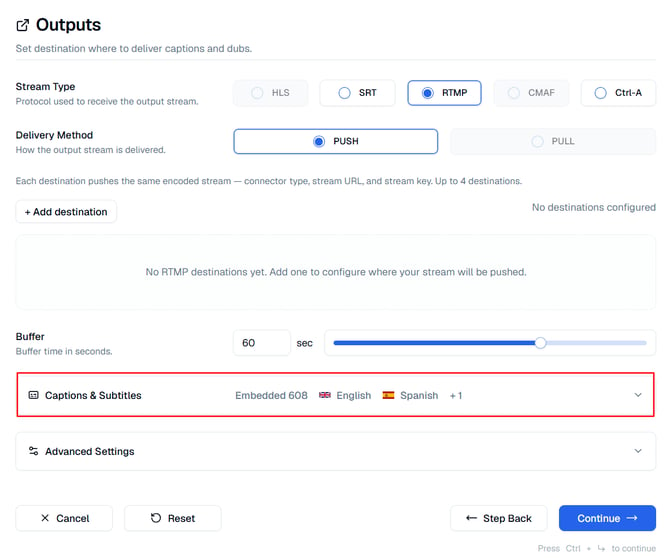
Make sure the "Embedded 608" is enabled under Captions & Subtitles. Make sure to click "Continue" once your selections are set. This moves to the next step where you can preview your Service settings.
Please see Step 5: Output (RTMP) - How do I configure RTMP Output for my Service using the new UI? for more information.
NOTE: Captions will not appear in the Restream player itself, but Restream will pass on the embedded 608 captions to your chosen destination. Not all platforms support all types of captioning formats, so make sure the 608 format is compatible with the platforms you are streaming to.
Step 6 - Getting the Stream URL and Key from Restream
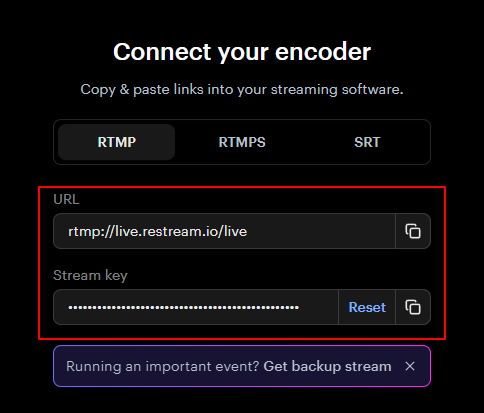
Create a new stream and select the Encoder | RTMP option.
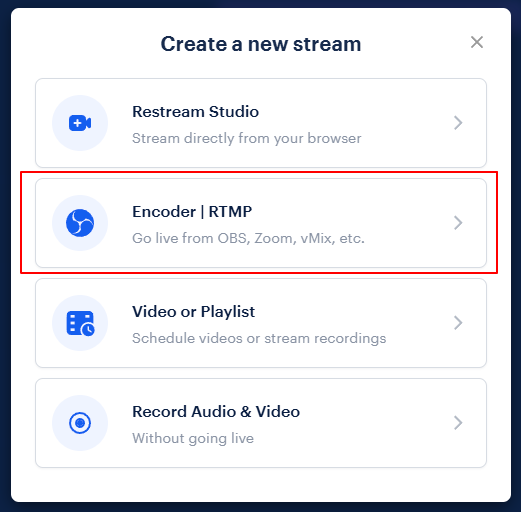
You will then be presented with the URL and Stream key you need to enter in your SyncWords Service from the "Stream Settings" tab.
WARNING: You must start your SyncWords Service in order for it to accept incoming streams and deliver an output.